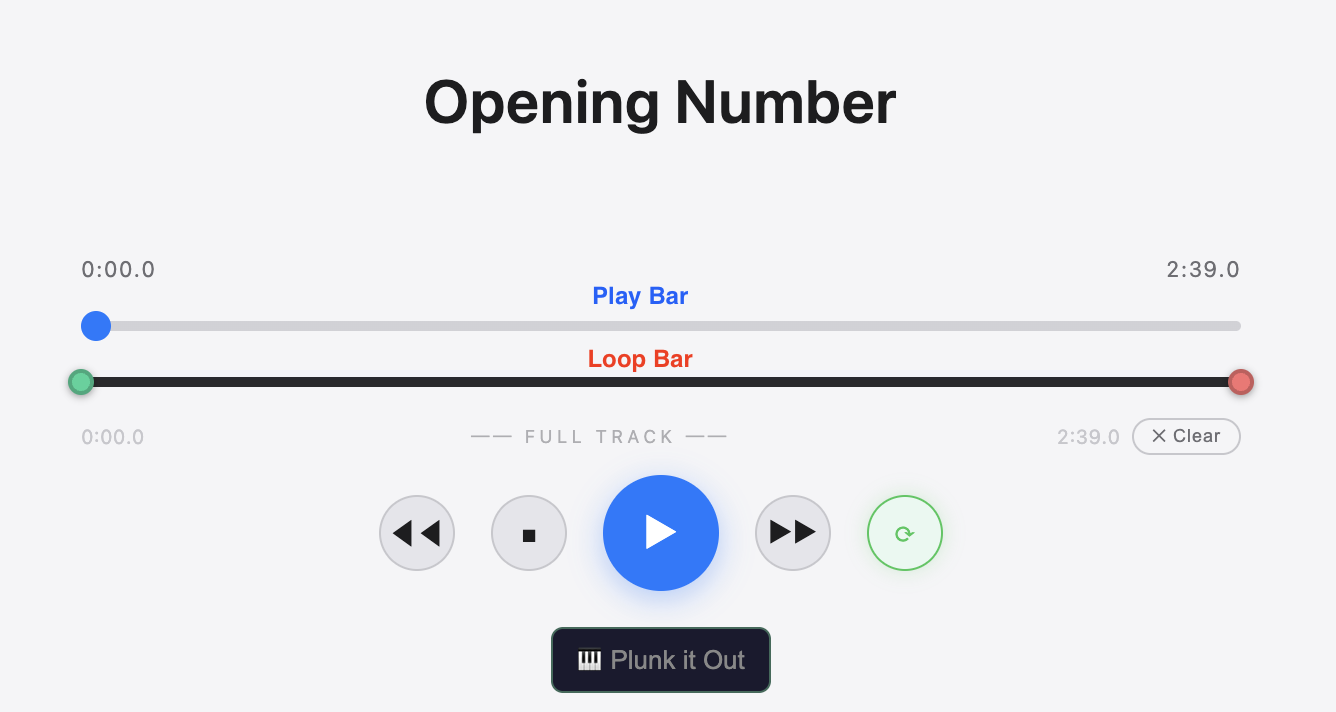
Tap the blue play button to start. Tap it again to pause. Use the Play Bar (the long bar under the timer) to jump to any spot in the song.
The Loop Bar (the thinner bar below it with green dots) repeats a section. Drag the green dots to mark what you want to loop. Tap ✕ Clear to remove it.

The Tempo slider goes from 75% to 125% speed. Drag it left to slow the music down while you learn your part. The pitch stays correct — no chipmunk voices.
The Key slider shifts the music up or down. Use the +2 / −2 buttons to quickly find the key that fits your voice.
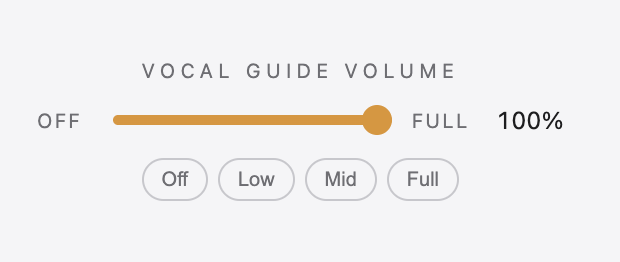
The Vocal Guide slider controls how loud the guide vocal is. Crank it up while you're learning, then slowly bring it down as you get more confident.
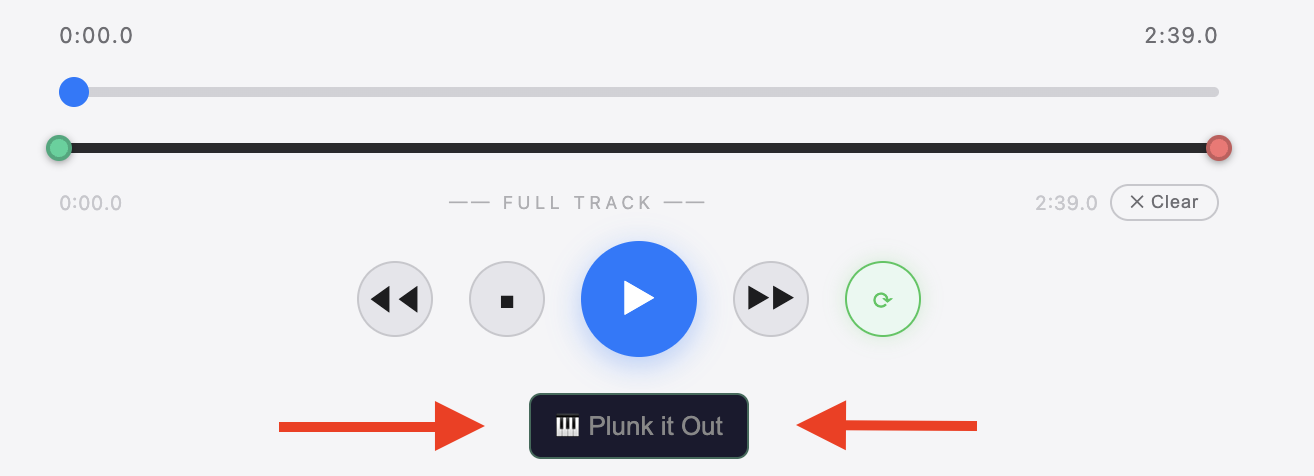
Tap Plunk It Out to go one note at a time at your own pace — you control when each note plays.
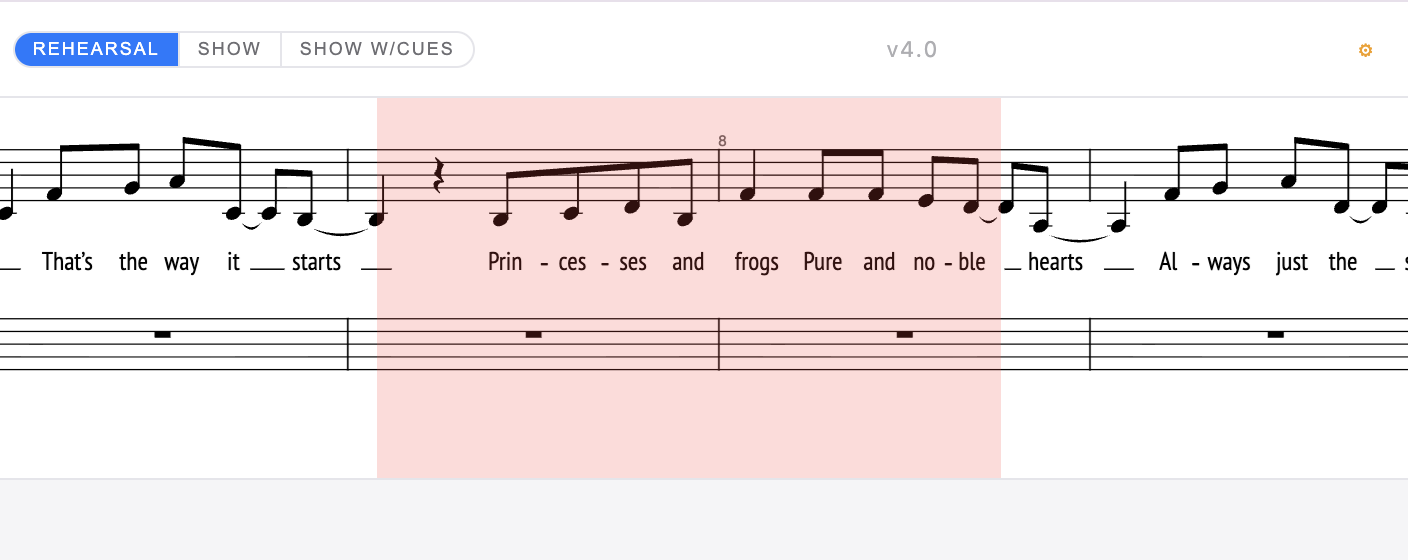
When sheet music appears at the top of the screen, a pink bar moves with the music. Whatever's under the pink bar is playing right now — the sheet music scrolls underneath it.
After tapping Save for Offline, the audio is stored on your device. On some phones and computers, the browser can delete saved audio when it runs low on space — or when you close the browser.
The most reliable fix is to install the app on your device. Installed apps hold onto their saved audio much more reliably than browser tabs.
iPhone / iPad: Open the site in Safari, tap the Share button, then tap Add to Home Screen.
Android: Open the site in Chrome, tap the three dots menu (⋮), then tap Add to Home Screen or Install app.
Windows (Chrome): Open the site, click the install icon (⊕) in the address bar, or go to Chrome menu → Save and share → Install page as app. If audio still re-downloads, go to Chrome Settings → Privacy and security → Cookies and other site data, and turn off "Clear cookies and site data when you close all windows" — or add this site to the exceptions list just below that toggle.
Playlists let you save a custom set of songs — useful for focusing on just the songs in your scene, or building a personal practice order.
Tap the song list (☰ on mobile) to open the menu, then tap + New Playlist. Give it a name and check the songs you want to include. Tap Save.
To switch between playlists, use the dropdown at the top of the song list. To go back to all songs, choose All Songs from the dropdown.
Admin mode unlocks extra tools for musical directors: saving offline audio, syncing playlists to the cloud, setting a default playlist, and generating tenant links.
To turn on: tap the AANDGO header three times quickly. A status message will confirm it's on. Tap three times again to turn it off.
With admin mode on, a cloud sync button (☁) and a star button (☆) appear next to your playlists. Use ☁ to push the current playlist settings to all devices, and ☆ to set it as the default playlist everyone sees when they first open the app.